OTA Update
What is OTA?~
Over-the-Air (OTA) update is a mechanism that allows firmware updates to be deployed to ESP32 devices wirelessly, eliminating the need for physical connections. The Battery-Emulator uses the library Elegant OTA to achieve this.
Prerequisites~
Before being able to use OTA update, ensure you have the following prerequisites:
- A Wifi connection established to the board
- Either a direct connection to the board (192.168.4.1 IP after connecting to the BatteryEmulator network (default password 123456789)
- OR a connection via a router (see quickstart video for how to connect Battery-Emulator hardware directly to your home network)
TIP
Most settings are stored to persistent memory. This means that all the things you configure in Webserver (Wifi settings, max charge/discharge rate, SOC scaling settings, Battery capacity) don't have to be configured again. The system will use the previously set settings automatically!
Getting the updated file~
You can download the latest release from Github Releases section.
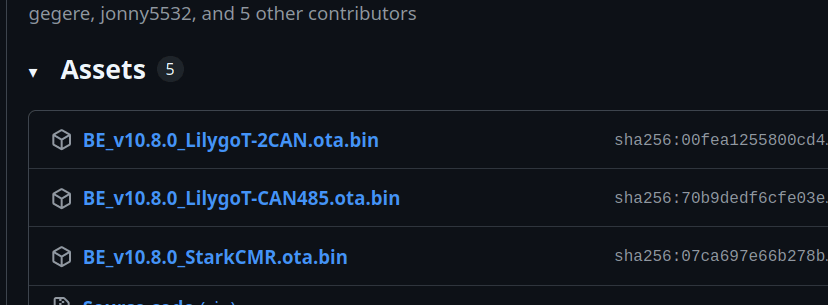
After opening the release you want to update to, at the bottom of the page select the .bin file that matches your hardware.
Performing the OTA update~
- Start by navigating to the web address (Note that IP will be different compared to direct / router connection)
- At the bottom of the page, click the "Perform OTA update"

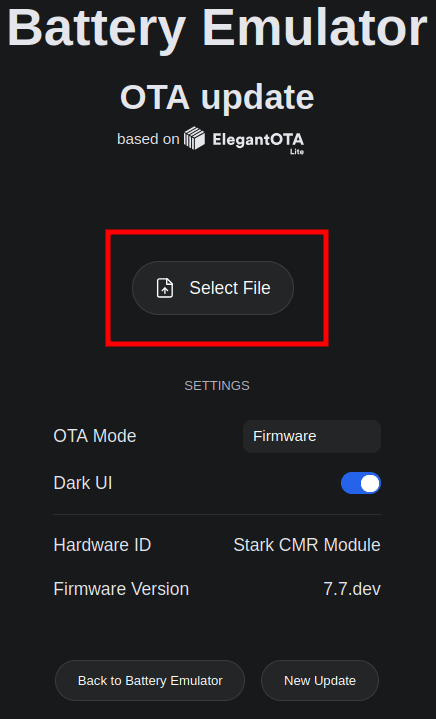
- On the ElegantOTA page, select the "Select file" option
-
Select the
.binfile that you want to update to -
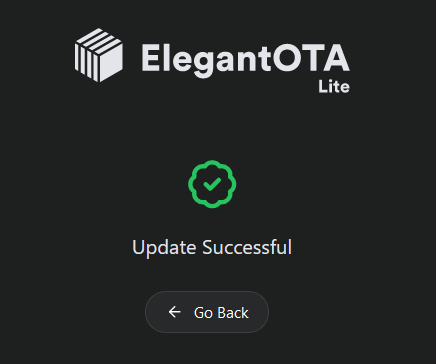
Flashing will commence, once completed you will see this message:
- Congratulations, you have now updated the firmware remotely over the air! 🥳
If the new firmware does not work~
An update has to prove itself before it is kept. The board keeps the previous firmware in the second flash slot, and the new firmware is confirmed only once it has been running for 42 seconds.
- If the new firmware crashes, trips the watchdog, or the board loses power within those first 42 seconds, the bootloader brings back the previous firmware by itself. No USB cable and no erase are needed, your settings are kept, and the event log records which version failed.
- If the new firmware runs for 42 seconds, it is confirmed and becomes permanent. Later reboots keep it.
- Restarting the board yourself from the webserver within those 42 seconds does not undo the update. A deliberate restart confirms the firmware first.
NOTE
There is a trade-off: an update that dies after, say, 30 seconds, or a power cut during the 42 second window, is now discarded where previously it would have been kept. That is intentional. An image that cannot survive its first 42 seconds is not one worth keeping, and the board is left running firmware that works instead of needing USB recovery.
Nothing needs to be configured, this happens by itself.
Troubleshooting~
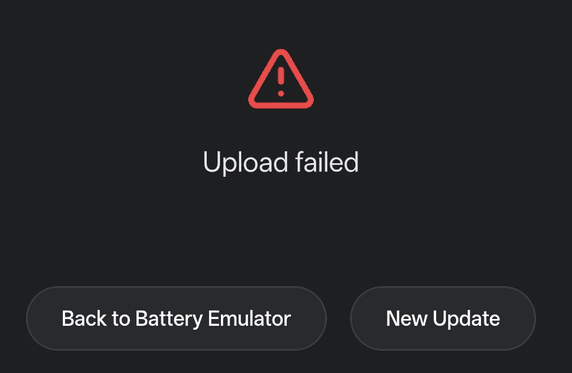
If you see "Upload failed" or some other error code, you can try the following things.
- Make sure you are sending the right .bin file for the correct hardware
- Improve Wifi coverage if signal is weak, remove obstructions if needed
- OTA updating from another device (Laptops are better than smartphones)
- Connect directly to the AccessPoint network broadcasted by the Battery-Emulator, stand near the device, and send the OTA file
CAUTION
Working with high voltage is dangerous. Always follow local laws and regulations regarding high voltage work. If you are unsure about the rules in your country, consult a licensed electrician for more information.