CAN logging
CAN logging basics~
The board can operate as a CAN logger, skipping the need for purchasing an expensive tool. There are three ways to log CAN messages, via USB (more reliable), via Webserver (easiest), and via SD-CARD (requires LilyGo).
Logging a live vehicle 🚘~
If you intend to log CAN messages from a functional vehicle, remember to:
- Use Fake battery for testing purposes protocol to avoid any CAN messages being sent towards the vehicle.
- Use Inverter/Shunt protocol: None to avoid any CAN messages being sent towards the vehicle.
- Remove any termination resistors from the board (Either remove jumper on Stark, or desolder on LilyGo).
CAN logging~
Webserver~
To raw dump CAN traffic going through the board, click the "CAN tools" button on the main page, and then press "Start dump". This will open a new page, \dump_can.
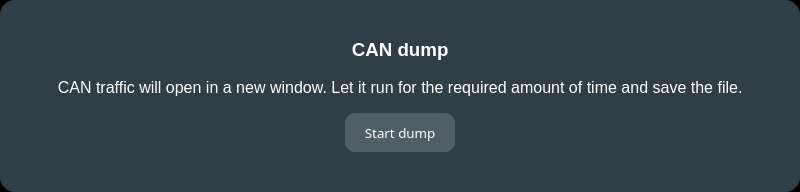
Let the CAN dumper run for enough time, and save the entire page to a document.
TIP
On Linux and Mac, you can also do an export in a txt file using this oneliner until you press Ctrl+C:
In Windows 10 command prompt:
From PowerShell:
while ($true) { curl.exe http://192.168.4.1/dump_can | Out-File "$HOME\Downloads\can_log.txt" -Append -Encoding ascii }
The 192.168.4.1 is the Access Point IP of Battery Emulator. In the examples above, replace it with the IP address it has in your own network.
USB~
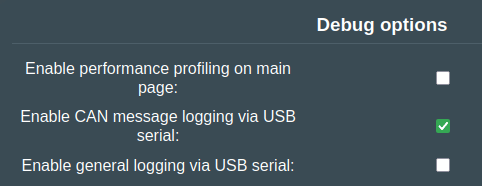
To access the CAN-logging, turn on the Enable CAN message logging via USB serial feature. When this is enabled, all the incoming/outgoing CAN & CAN-FD messages will get timestamp, direction, ID, DLC, and data fields printed out via the Arduino IDE serial monitor. This can then be exported to a .txt file for later analysis.
Alternatively, a much simpler way to log the data is via a serial terminal client like Putty. Connect to the COM port and set baud rate, and configure it to save the output to a file.
SD card~
To enable logging of CAN messages to an SD card enable the Enable CAN message logging via SD card feature. To maximize performance you should not enable other debug features at the same time as it could lead to CAN messages not being logged. The format of the log file is the same as the USB can log feature and can be read by tools like Savvy CAN directly.

If you have debug logging enabled and there are too many messages on the CAN bus to write to the SD card the error Failed to send message to can ring buffer! will be logged.
Once enabled the CAN logger button will be enabled on the webserver, no data will be shown on the website, instead the CAN log file can be downloaded by clicking on the Export to .txt button which will download the file from the battery emulator. You can also delete the CAN log file by clicking on the Delete log file button. For very large captures it may be quicker to remove the SD card and plug it into a PC directly.
The SD card must be formatted using the FAT file system, if you are using an SD card larger than 32GB you will need to partition the card otherwise exFAT will be used, which is not compatible with the ESP32. The best tool to use for formatting of the SD card is SD Card Formatter
On startup the SD card is checked and if you have debug logging enabled a message will be output showing success or failure.
Success Example:
SD Card initialization successful.
SD Card Type: SDHC
SD Card Size: 61183 MB
Total space: 7984 MB
Used space: 2MB
Failure Example:
sdmmc_init_ocr: send_op_cond (1) returned 0,107
vfs_fat_sdmmc: sdmmc_card_init failed ()x107).
Failed to initialize the card (0x107). Make sure SD_card lines have pull-up resistors in place.
SD Card initialization failed!
If you get the SD Card initialization error you may need to remove power to the board for a couple of seconds to reset it. Simply rebooting the emulator or even using OTA or reflashing will not fix it.
Also try another SD card, and make sure it is not locked. Also make sure it is seated OK, and formatted as FAT32
Log file format~
The log file format is compatible with the CANdump format. This can be read natively by tools like SavvyCAN.
Dump contains traffic for all the ports in the system, the packets are identified by the interface they go through:
TX1andRX0— Native CAN portTX3andRX2— Native CANFD portTX5andRX4— Add-on CAN MCP2515TX5andRX4— Add-on CAN-FD MCP2518TX7andRX6— Add-on CAN-FD MCP2518 on shared bus
Example format, CAN log:
(7.556) TX1 54A [8] 10 0 70 2 0 0 0 2B
(7.558) TX1 54B [8] 1 8 80 12 4 0 0 0
(7.560) TX1 54C [8] 61 66 0 0 0 0 57 0
(7.561) TX1 1D4 [8] F7 7 0 0 7 46 0 7B
(7.573) TX1 11A [8] 1 40 0 AA C0 0 0 3
Example format, CAN-FD log:
(64.644) TX3 10A [32] D8 DE 99 00 00 00 00 01 FF 01 00 00 36 39 35 35 C9 02 00 00 10 00 00 35 00 00 0A 00 00 00 00 00
(64.656) TX3 120 [32] 6E F3 99 00 00 00 00 01 FF 01 00 00 37 35 37 37 C9 02 00 00 00 00 00 35 00 00 0A 00 00 00 00 00
(64.668) TX3 19A [32] 19 48 88 55 44 64 D8 1B 40 20 00 00 00 00 11 52 00 12 02 64 00 00 00 08 13 00 00 00 00 32 00 00
(64.669) TX3 10A [32] 12 35 9A 00 00 00 00 01 FF 01 00 00 36 39 35 35 C9 02 00 00 10 00 00 35 00 00 0A 00 00 00 00 00
(64.681) TX3 120 [32] A4 18 9A 00 00 00 00 01 FF 01 00 00 37 35 37 37 C9 02 00 00 00 00 00 35 00 00 0A 00 00 00 00 00
NOTE
If your serial monitor is filled with strange symbols "???!"?¤¤%", change the baud rate in the serial monitor window from 9600 -> 115200
When a large amount of CAN traffic is present on the bus, you may need to increase the serial monitor baud rate to 460800 in Software.ino ( by changing Serial.begin(115200); to Serial.begin(460800); ) of course the serial baud rate of the serial monitor then also needs to be increased to 460800.
TIP
To only save the traffic from a specific interface, you can grep the strings. For example to save only Native CAN port (rx0, tx1) packets until you press Ctrl+C:
On Linux and Mac:
while true; do curl -N http://192.168.4.1/dump_can | grep -iE --line-buffered 'rx0|tx1' >> ~/Downloads/can_log.txt; done
In Windows 10 command prompt:
for /l %i in (0,0,1) do @curl -N http://192.168.4.1/dump_can | findstr /i "rx0 tx1" >> "%USERPROFILE%\Downloads\can_log.txt"
From PowerShell:
Interpreting the CAN logs~
The log files stored by the Battery-Emulator is in a format that SavvyCAN can interpret. This program can also be connected to a translation .DBC file for an even easier interpretation of the log.
CAUTION
Working with high voltage is dangerous. Always follow local laws and regulations regarding high voltage work. If you are unsure about the rules in your country, consult a licensed electrician for more information.